

Many devices. One camera crew.
Your spare phones
are a camera crew
Put the phones and tablets you never use on the same Wi‑Fi. One tap starts every camera at once, and Archon Camera directs the rest.
- Free
- No ads
- No account
Archon Camera in one scene
The tablet in the middle is the controller. On the tripods around it — an iPhone, a Galaxy, an iPad, even a laptop — different makers become one camera crew the moment they share a Wi-Fi network. The controller shows a preview and battery level for every camera, and the whole recording starts and stops with a single button.

Coming to the stores
App Store and Google Play submissions are being prepared. Download links will appear here as soon as they are live.
Platforms: Android · iOS · macOS · Windows
On a computer? Download it now
The desktop version — a natural fit for the controller seat — skips the store queue. Grab it right here.
These are preview builds without a code signature yet, so the first launch shows a security prompt. On macOS, unzip, right-click the app and choose "Open". On Windows, click "More info" then "Run anyway" on the SmartScreen warning.
Where the name comes from
An archon (ἄρχων) was the leader who presided over an ancient Greek city. In Archon Camera, one device in your hand takes that seat.
-
One device leads
The device you put in controller mode directs the whole shoot. Start, stop and where the footage ends up are all decided from there.
-
Every camera follows
Phones and tablets in camera mode act on the same signal at the same moment, so you never walk around tapping each one.
-
One local studio
Scattered devices become a single multi-camera studio on your own Wi-Fi. No server, no cloud, no internet account.
The name keeps the original Greek sense of the word: the one who leads.
What Archon Camera does
Only what you actually need when the same scene has to be shot from several angles.
-
One tap, every camera
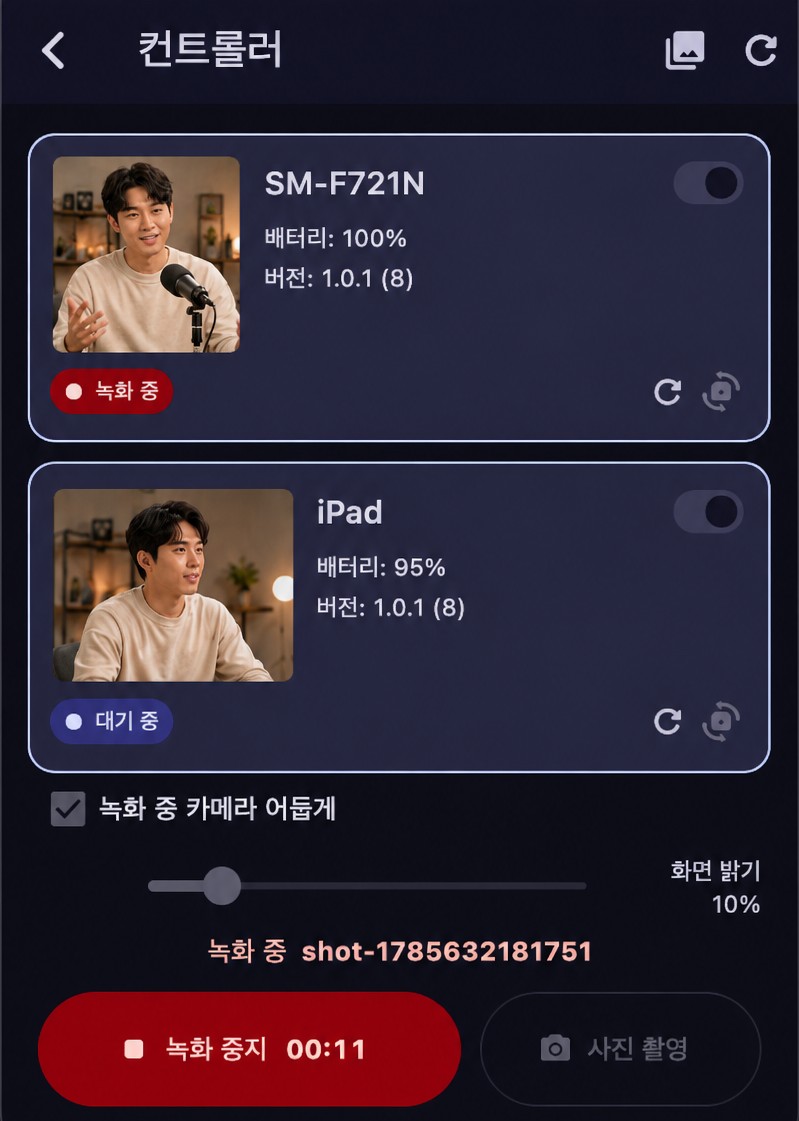
Press start on the controller and all connected cameras begin recording together. Stopping is one tap too.
-
Idle devices become new angles
The phone you replaced last year and the tablet in the drawer can both stand in as cameras. It is the cheapest way to add an angle: no new gear.
-
Footage gathers itself
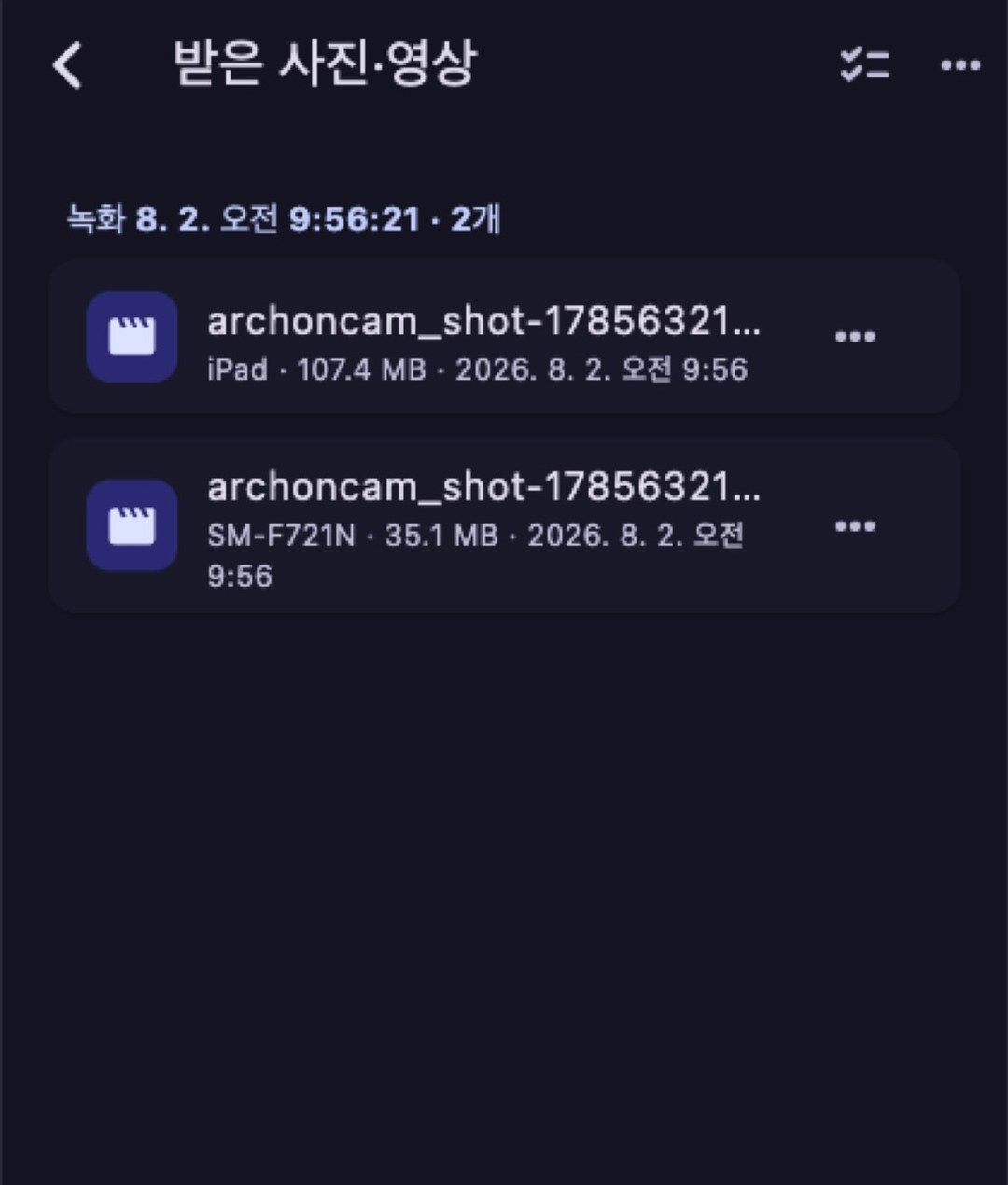
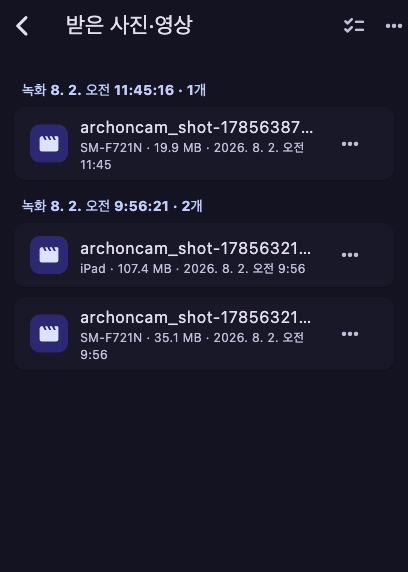
When a take ends, each camera sends its file straight to the controller, where recordings are filed into a folder per take.
-
Every camera on one screen
The controller shows how many cameras are ready, which ones are recording and which stopped responding. Preview thumbnails let you check framing before you roll.
-
Your Wi-Fi, no internet needed
Discovery, recording signals and file transfer all happen directly between devices on the same network. No external server is involved.
-
A desk can be the director’s chair
Controller mode runs on macOS and Windows as well as phones and tablets, so you can watch every camera on a big screen while you direct.
-
Stays out of the shot
Dim the camera screens while recording to save battery, silence calls and notifications with Do Not Disturb, and lock portrait or landscape capture in advance.
-
Nothing is lost on a bad connection
Failed transfers retry automatically, and if they still fail the video stays on the phone that shot it. You can also keep a copy on the phone every time.
Camera mode is built around phones with a camera (Android · iOS). A tablet with a camera can be used as well, though behaviour varies by device and setup. Controller mode runs on phones, tablets, macOS and Windows.
Ready to shoot in three steps
Nothing to configure, nothing to sign up for.
-
Step 1
Gather them on one Wi-Fi
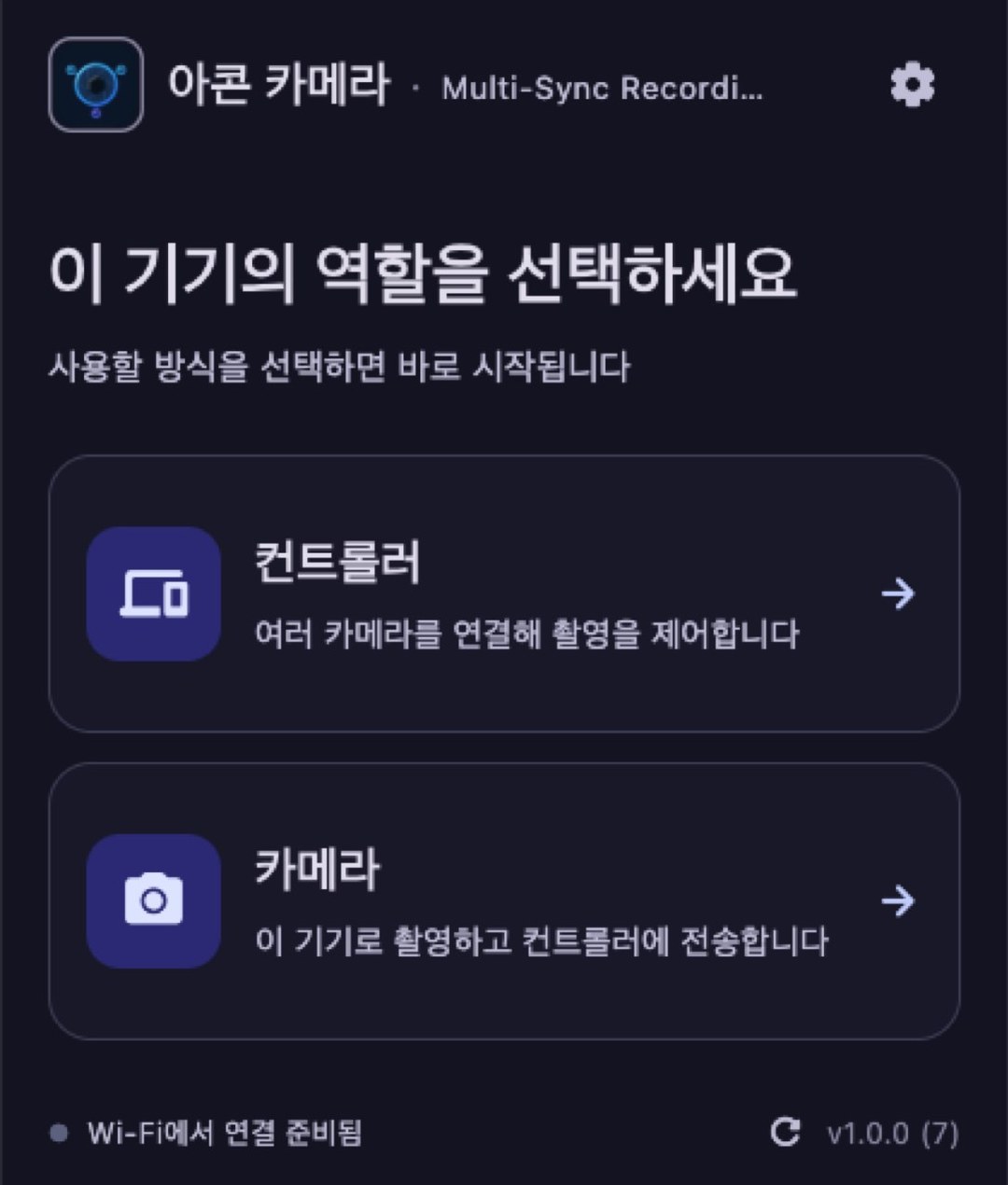
Connect every device to the same Wi-Fi and open Archon Camera on each one.
-
Step 2
Choose which one leads
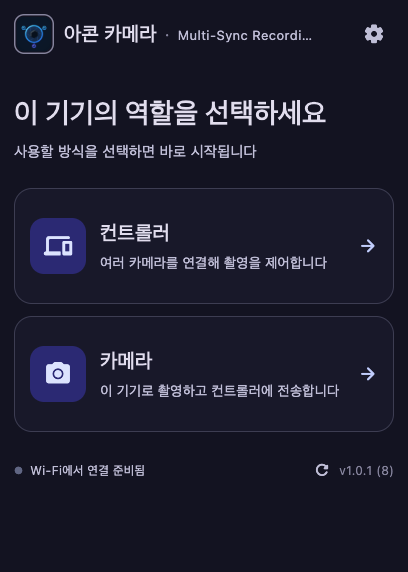
Pick one device as the controller; the rest become cameras. Cameras appear in the controller list on their own.

-
Step 3
Start recording
Press start on the controller and every camera rolls together. Stop, and the videos gather on the controller.
No Wi-Fi around? A hotspot works too
Shooting outdoors with no router? One phone's hotspot does the same job.
- Turn on the hotspot on one phone.
- Connect the other devices to that hotspot in their Wi-Fi settings.
- Pick roles and shoot exactly as usual.
Data-saving tip — Archon Camera talks directly between your devices, so recording and transfers use no mobile data. Other apps on the connected devices could still reach the internet through the hotspot, though — if that worries you, turn off mobile data on the phone hosting the hotspot. Shooting keeps working, and nothing touches your data plan. (Some phones need mobile data on to start the hotspot; switch it off afterwards.)
Your footage stays yours
Archon Camera creates no account, keeps no usage record and sends nothing to the internet. Your recordings only ever travel between your own devices.
-
No accounts
There is no sign-up and no login.
-
No data collected
No analytics, no ads, no tracking technology.
-
Local only
All communication happens directly between devices on the same Wi-Fi.
-
Minimal permissions
Camera, microphone and storage access are used only to record and save video.
Free, all of it
Every Archon Camera feature is free. No locked features, no time limits, no subscription, no in-app purchases, no ads. This website carries no tracking scripts and no cookies either.
- Free
- No ads
- No account
- No analytics
- No in-app purchases
Donations are optional
If you would like to support development, you can. It unlocks nothing extra — every feature stays available whether you donate or not.
A donation channel is not set up yet. It will be announced here when it is.
Inside the app
The app's main screens. More will follow as the store listing comes together.
Frequently asked questions
What is Archon Camera?
An app that turns the phones and tablets you already own into a multi-camera setup on one Wi-Fi network. One device becomes the controller and directs the others; when the take ends, the footage comes back to the controller.
Why is it called Archon Camera?
An archon (ἄρχων) was the leader who presided over an ancient Greek city. The controller device leads several cameras as a single crew, which is where the name comes from.
How many cameras can I connect?
The app sets no fixed limit. How many work reliably depends on your Wi-Fi and your devices, so it is worth a test run with the exact number of phones you plan to shoot with.
Can I use an old phone as a camera?
Any device with a camera running Android 6.0 or iOS 12 and later will do; anything older cannot install the app. Even then, on older hardware free storage, battery and image quality are what limit how long you can record, so do a test run on the exact devices before a long take.
Is the recording frame-accurate?
The controller signals every camera at the same moment, but the actual start can drift slightly depending on device performance and network conditions. For precise editing, film a sync cue such as a clap right after the take starts — it makes lining up the clips easy.
Do I need an internet connection?
No. The devices only need to share the same Wi-Fi (local network), and that router does not have to be online. Outdoors with no router, turn on one phone's hotspot and connect the rest — it works the same way.
The controller does not find my cameras.
Check that all devices are on the same network (and on the same band if your router splits 2.4GHz and 5GHz), that camera mode is open on the phones, then tap refresh on the controller. Public and guest networks often block device-to-device traffic — a personal router or a phone hotspot works better. The support page has the full checklist.
Can I direct the shoot from a computer?
Yes. Controller mode runs on macOS and Windows as well. Camera mode should be used on a phone with a camera.
Where are the recordings stored?
By default in the save folder on the controller device, organised into one folder per take. You can also keep a copy on each camera phone.
Are there any costs or ads?
None. Every feature is free and there are no ads. Donating is entirely optional.
When can I download it?
App Store and Google Play submissions are in preparation. Download links will be posted on this page once review is complete.
Need a hand?
Tell us if something does not work or if you have an idea for the app.